
Zoom Integration Guide
Connect your Zoom account to CertFusion and automate certificate delivery for your webinars and meetings. This guide walks you through installing the app, importing attendees, and removing the integration if needed.
1. How to Install the CertFusion Zoom App
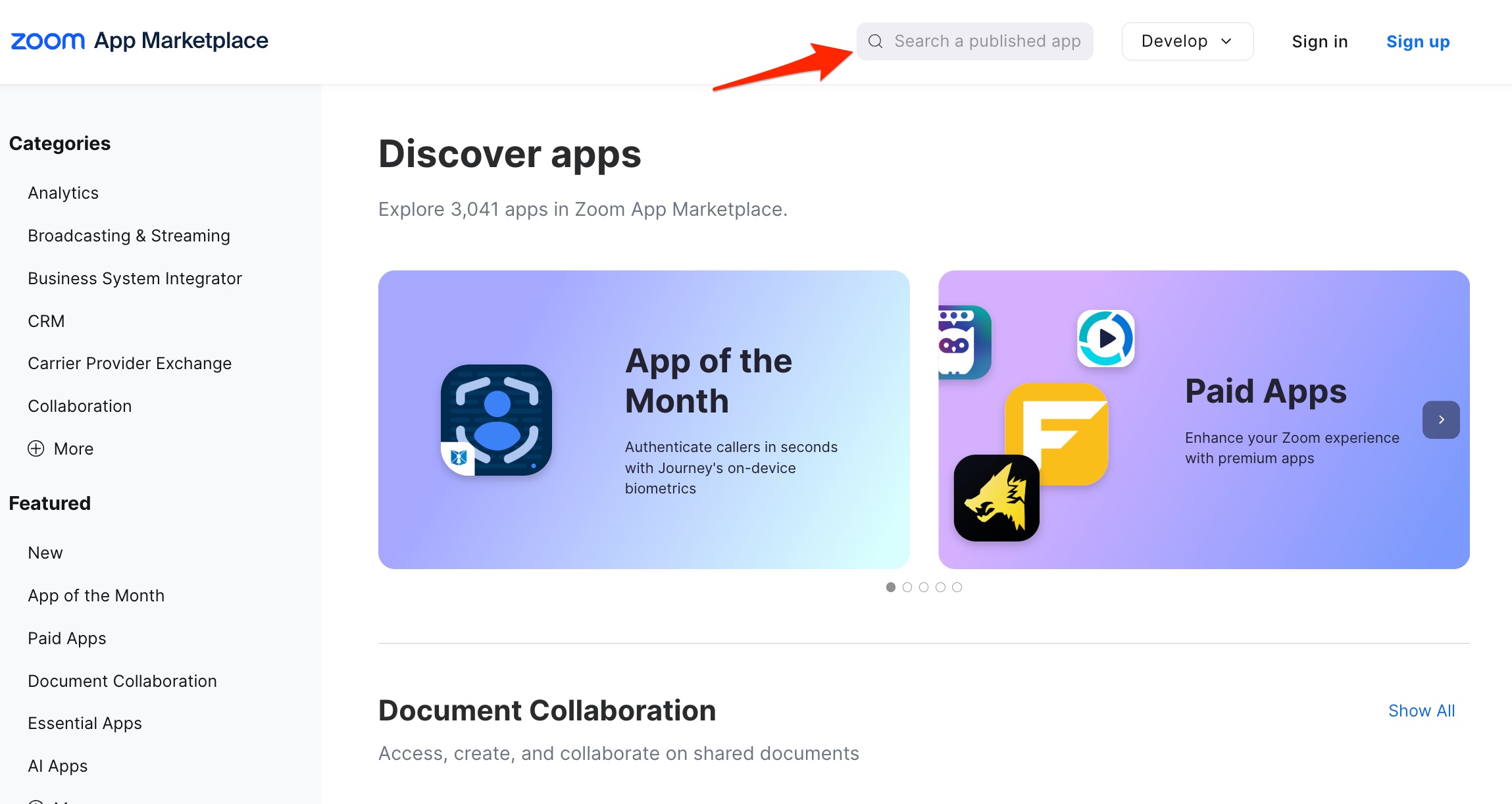
- Visit the Zoom App Marketplace.
-
Search for CertFusion and open the app listing.
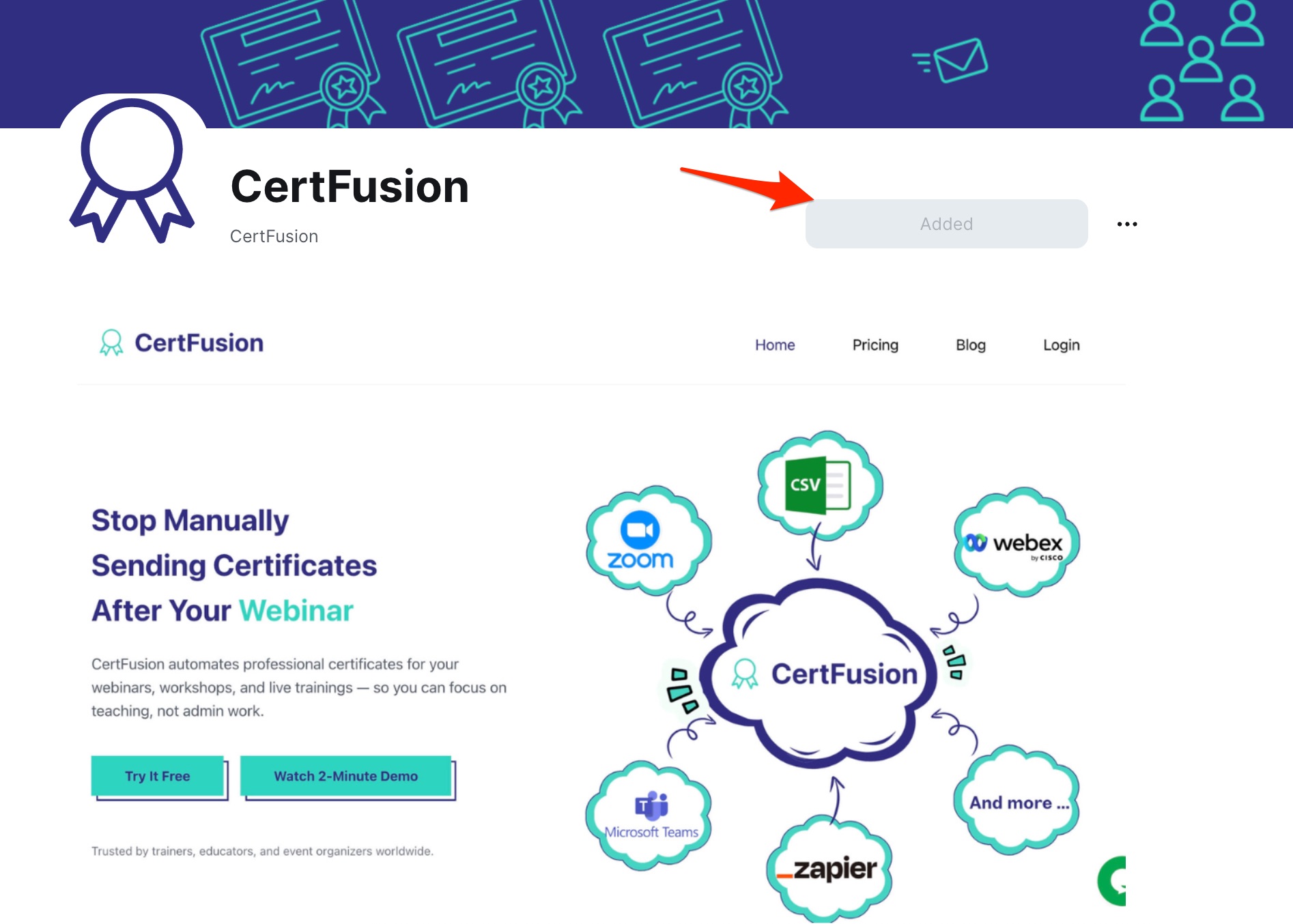
- Click Add and sign in with your Zoom account.
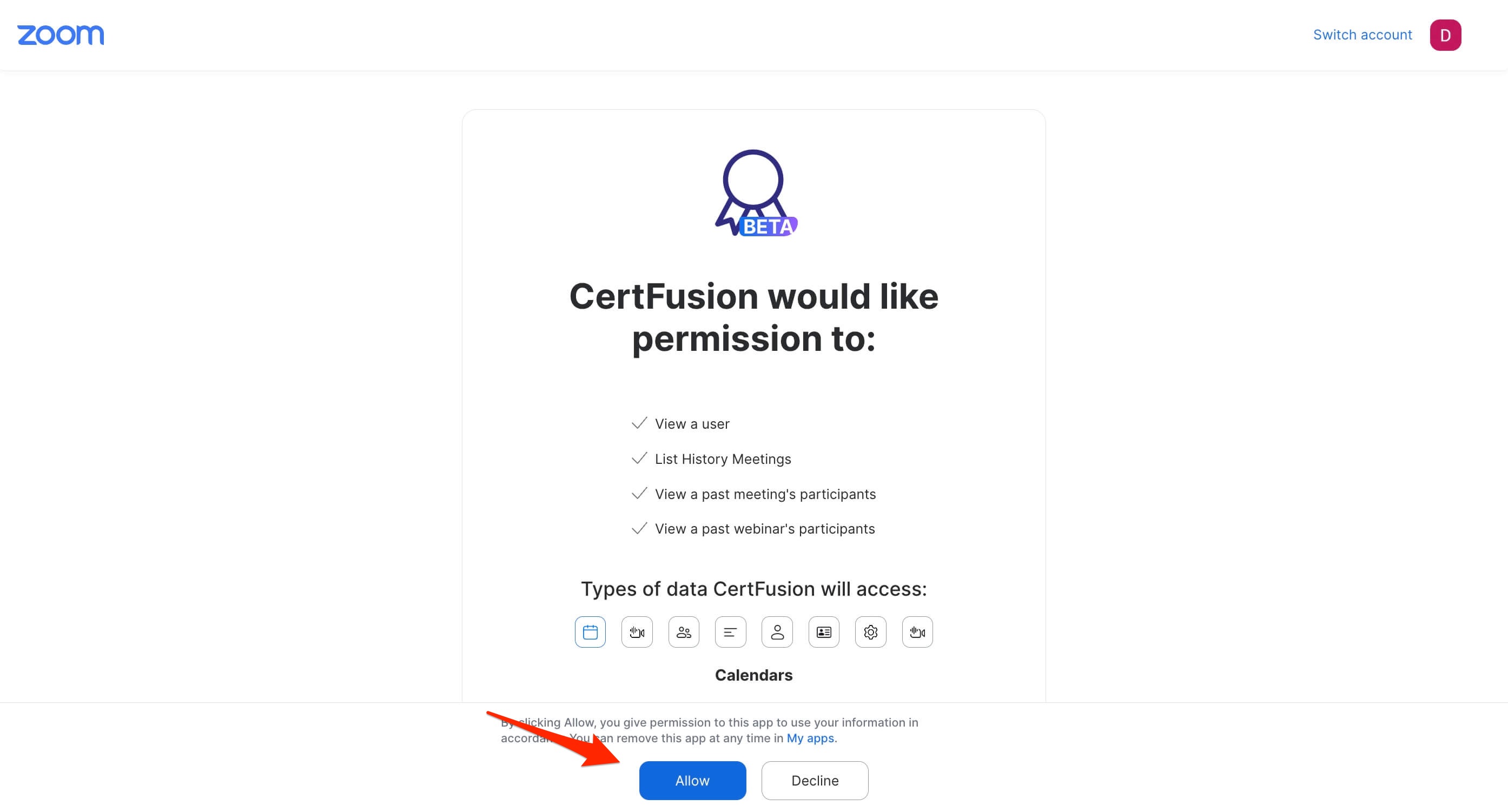
- Review and approve the requested permissions.
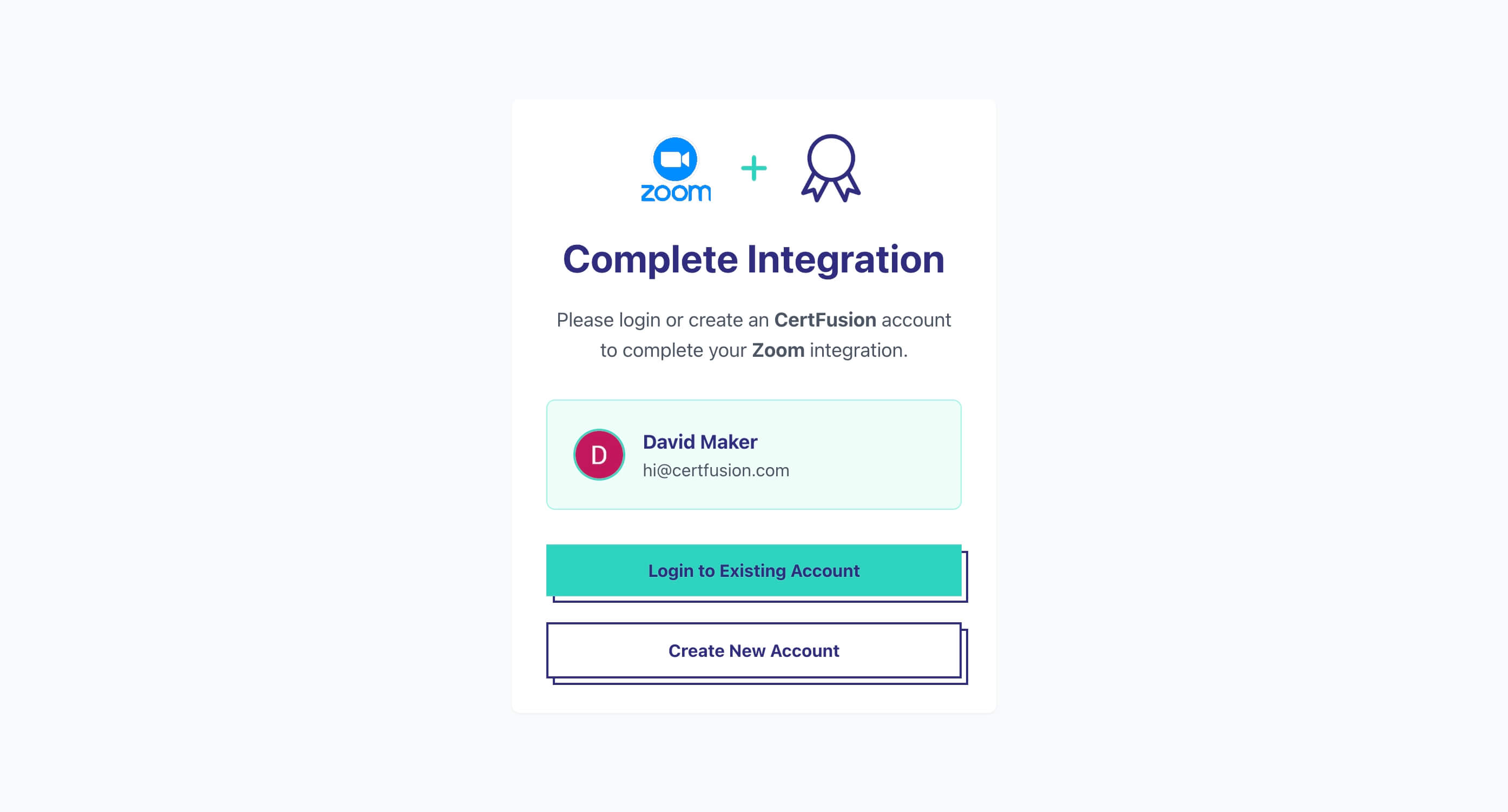
- You'll be redirected back to CertFusion with your Zoom account connected.
CertFusion only accesses participant data required for issuing certificates. We do not read your meeting content or recordings.
2. How to Import Participants
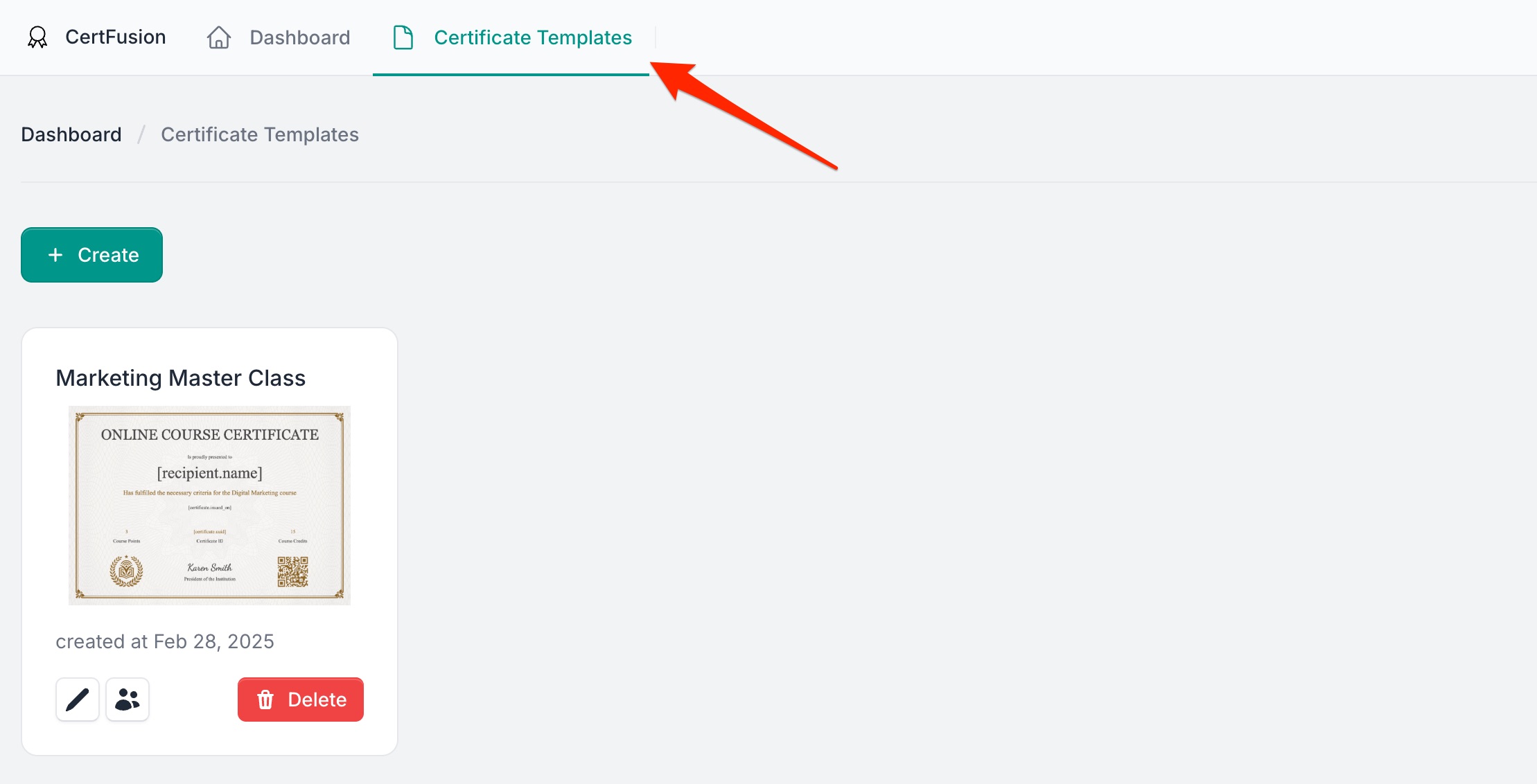
- Go to your Certificate Templates dashboard on CertFusion.
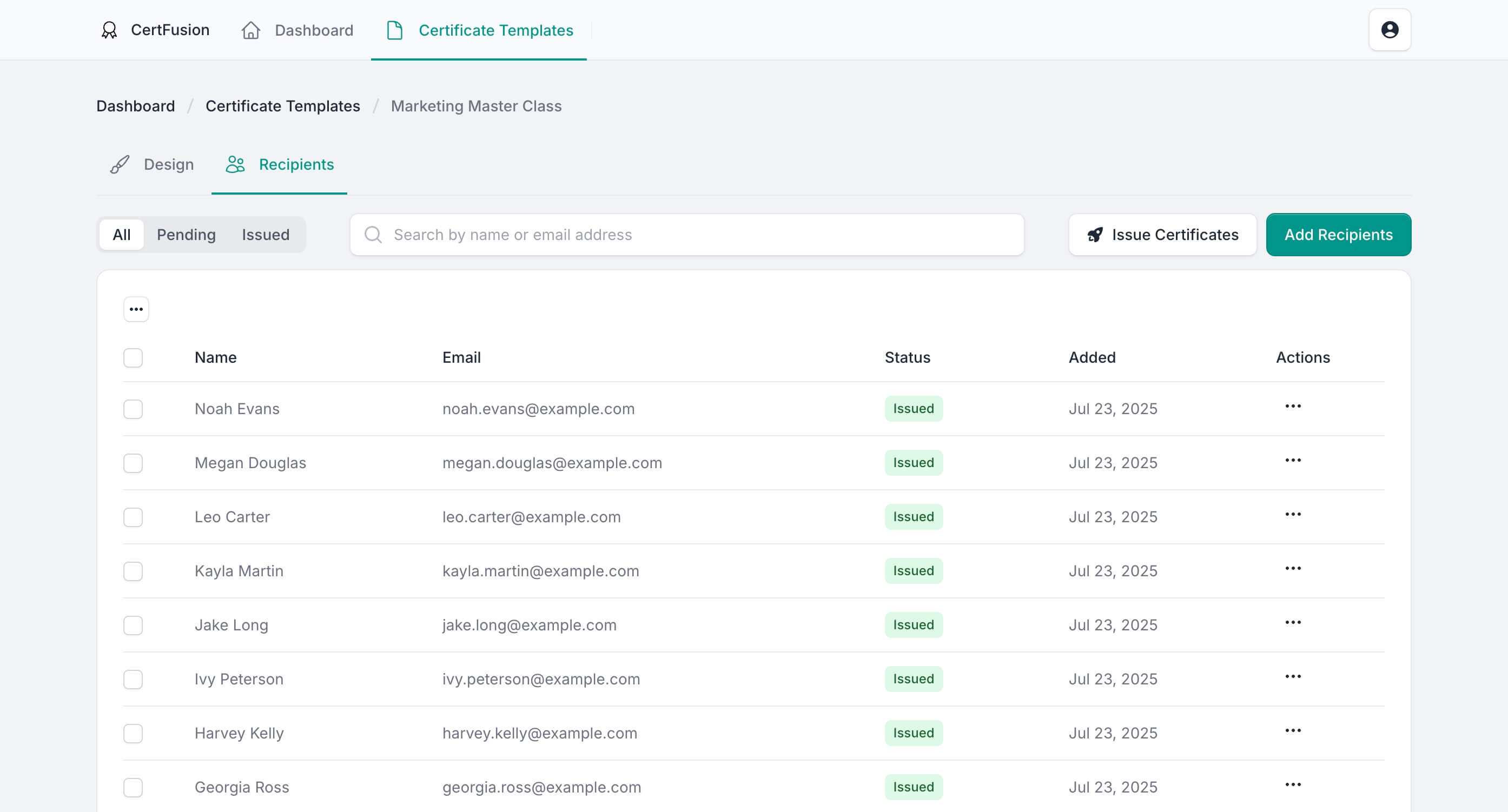
- Open the Recipients section of the template you want to import Zoom
participants into.
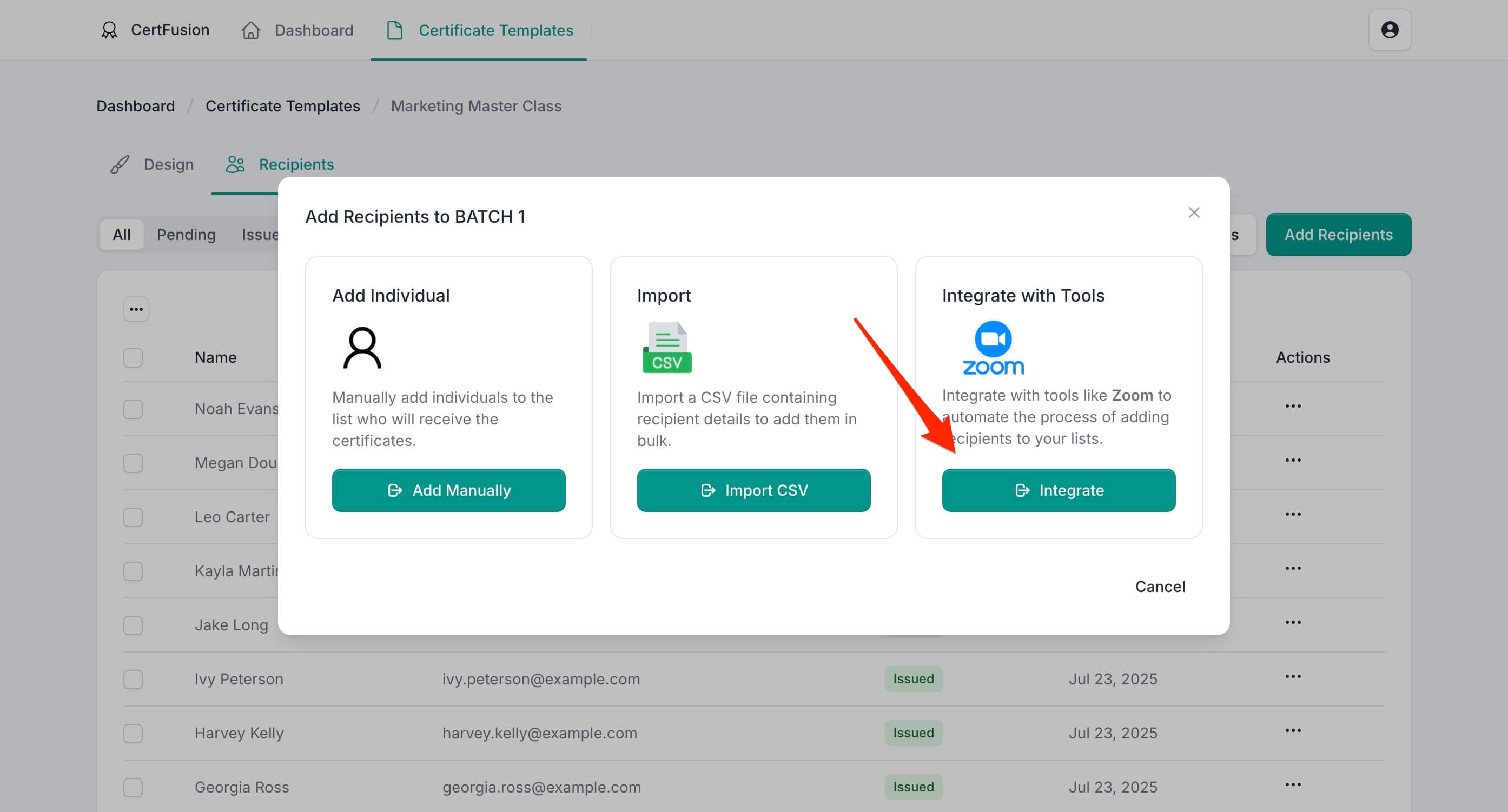
- Click Add Recipients and select Integrate with Tools.
- Choose the webinar or meeting from your Zoom list.
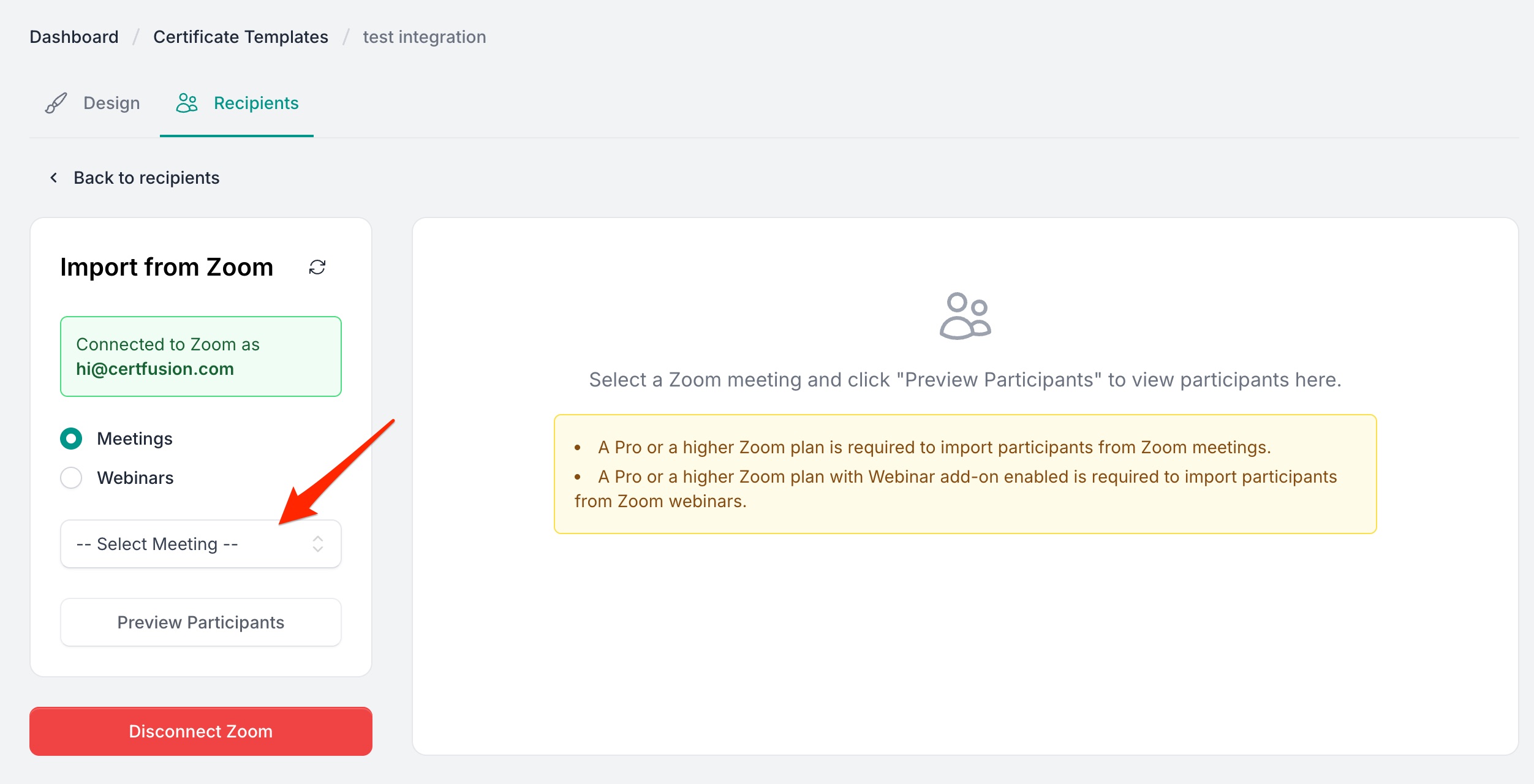
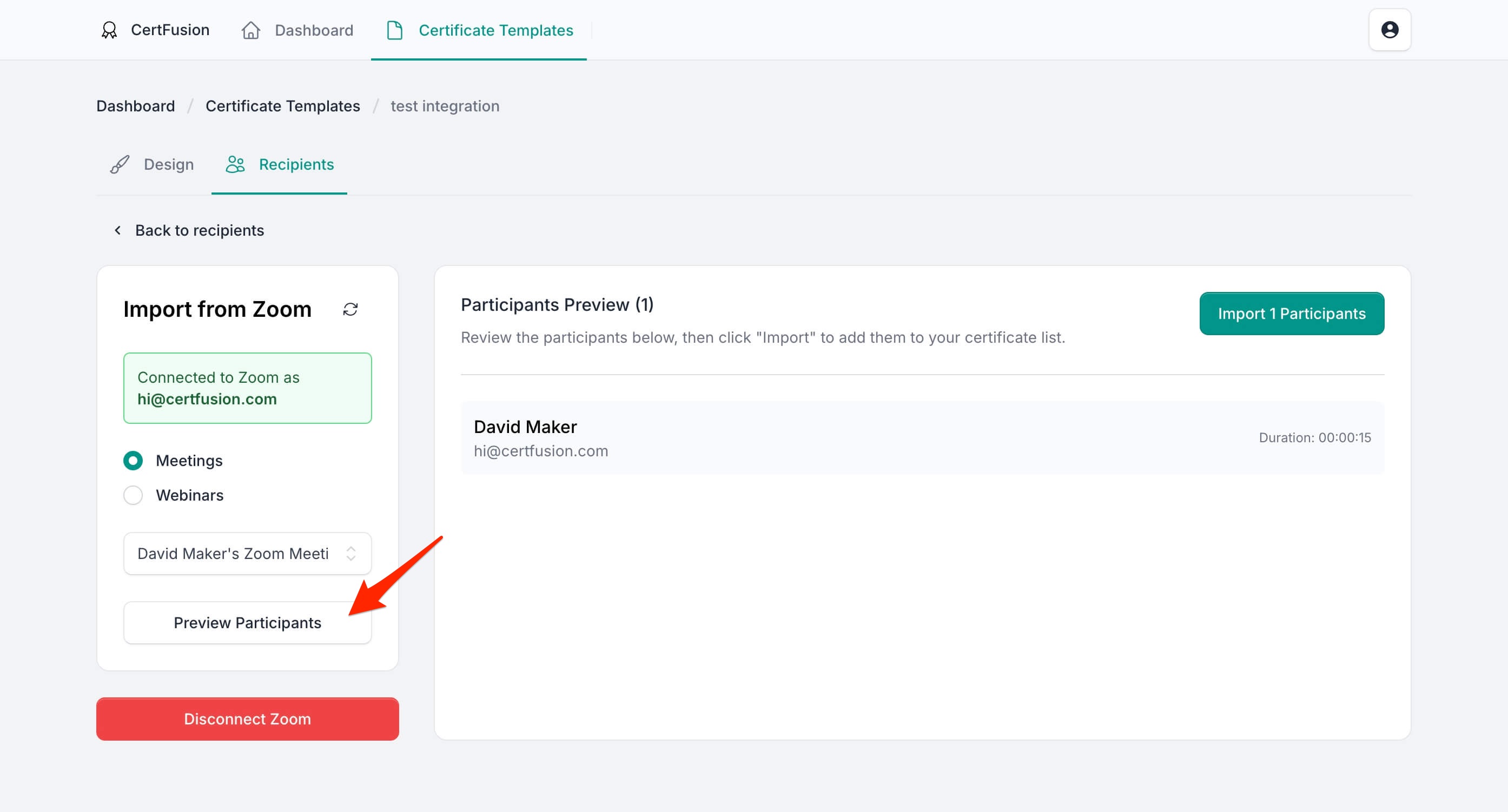
- Click Preview Participants to review the participant list.
- Click Import to bring in participant names and emails.
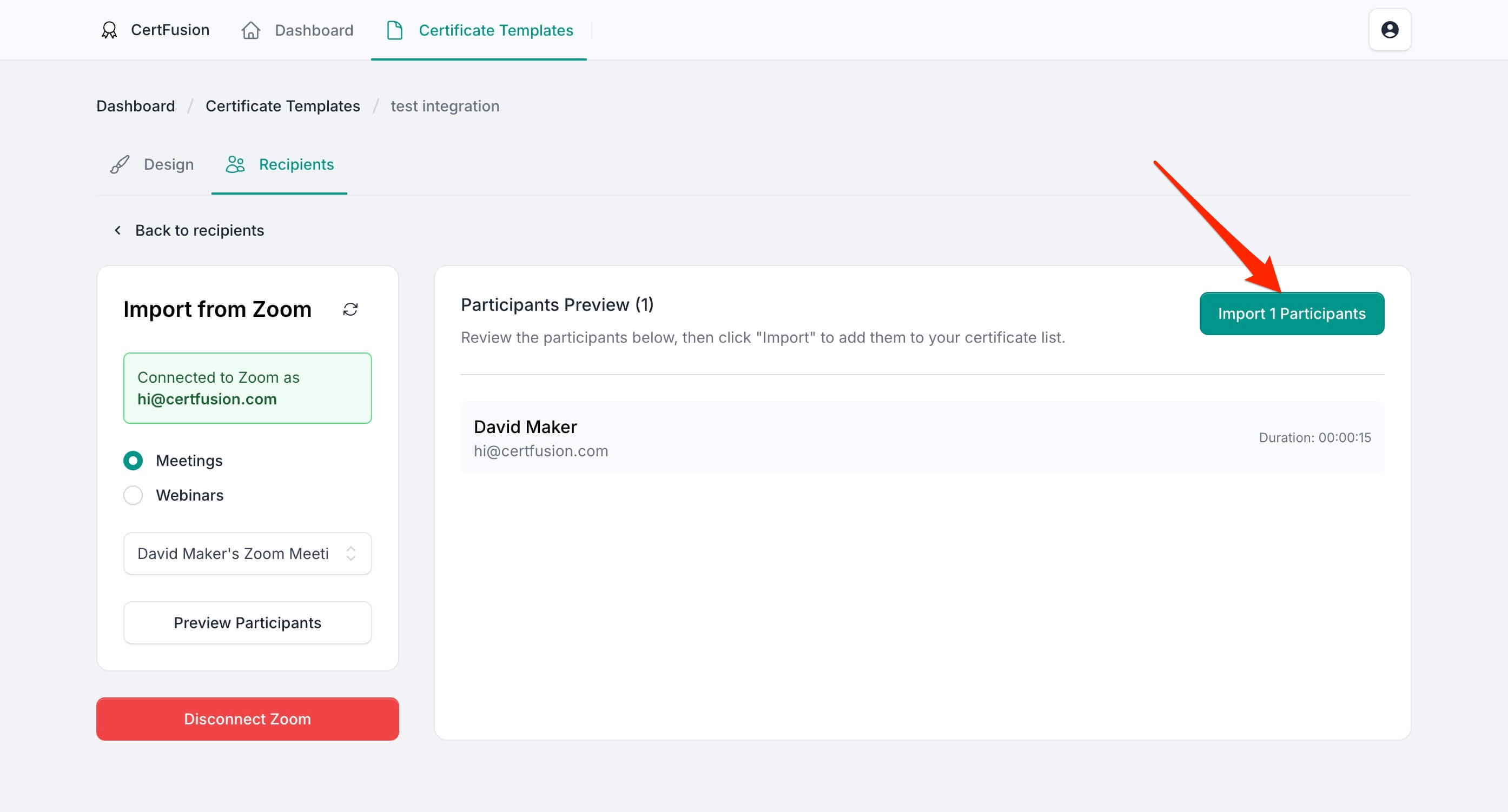
You can import attendees from past or upcoming events at any time.
3. Filter Participants by Attendance Duration
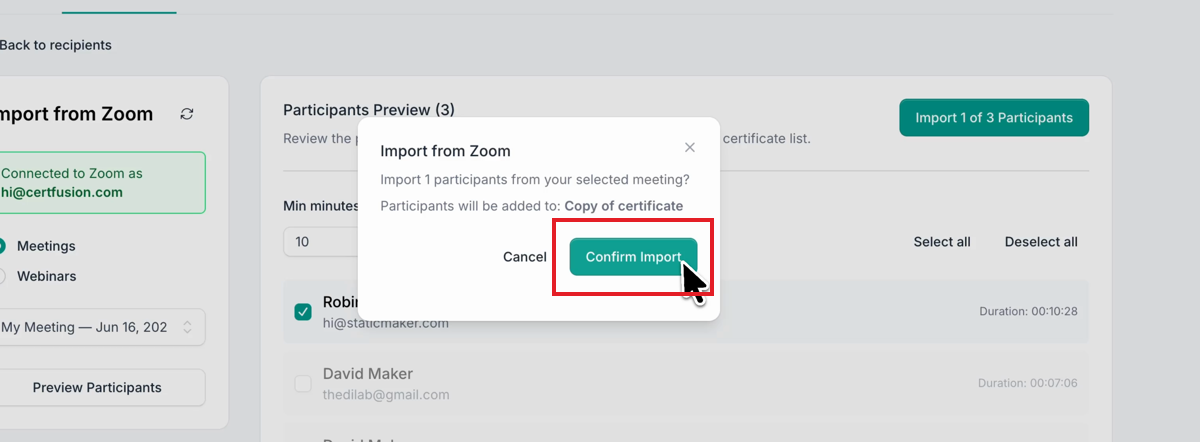
Set a Min minutes attended threshold to automatically deselect anyone who attended for less than that time. Follow the import steps above to select your Zoom meeting, then apply the filter before importing:
- In the Min minutes attended field, type your threshold — for example
10— and click Apply filter.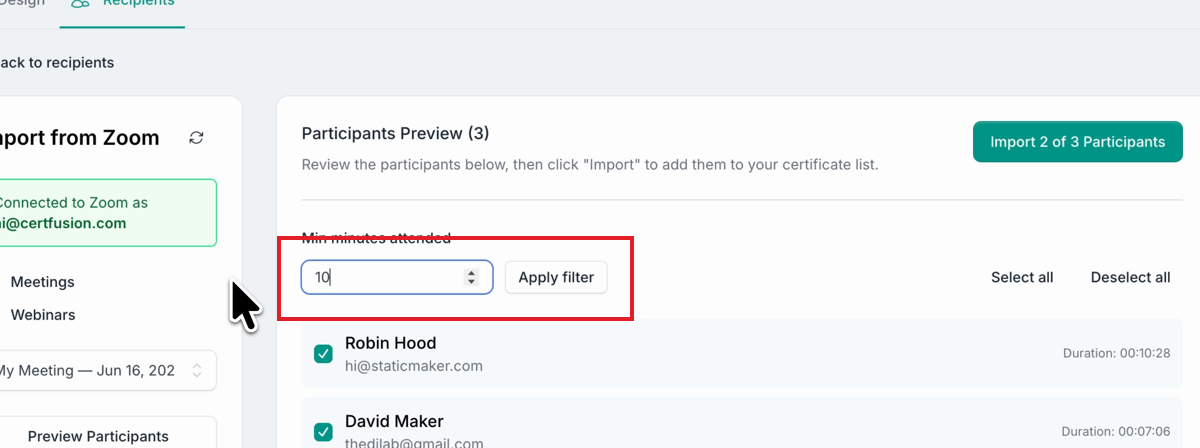
- Anyone below the threshold is unchecked automatically, and the import count updates to show how
many people qualify. You can still select or deselect individuals by hand to make an exception.
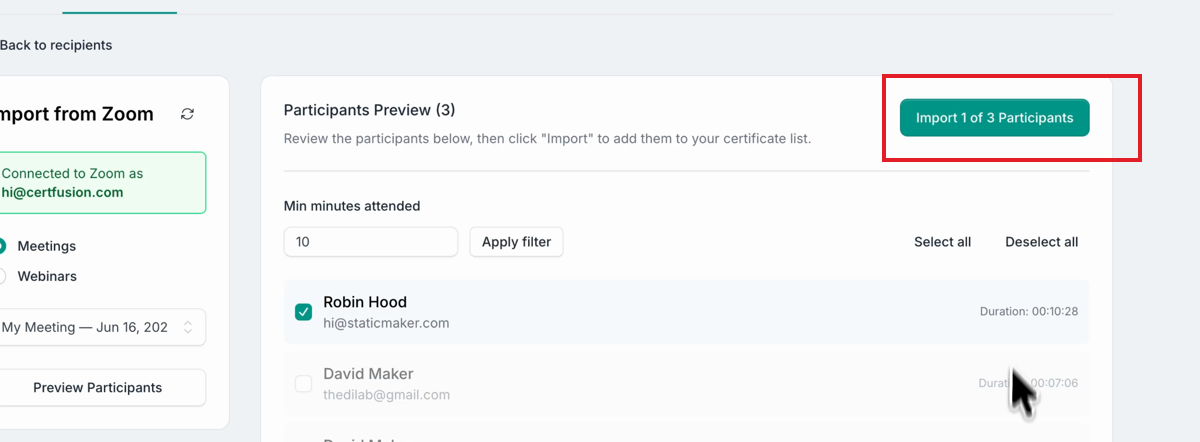
- Click Import, then Confirm Import in the dialog. Only the
qualifying participants are added to your recipient list.
Participant duration data requires a Pro or higher Zoom plan, and webinar attendance requires the Webinar add-on. Durations are only available after a session has ended.
4. How to Remove the CertFusion Zoom App
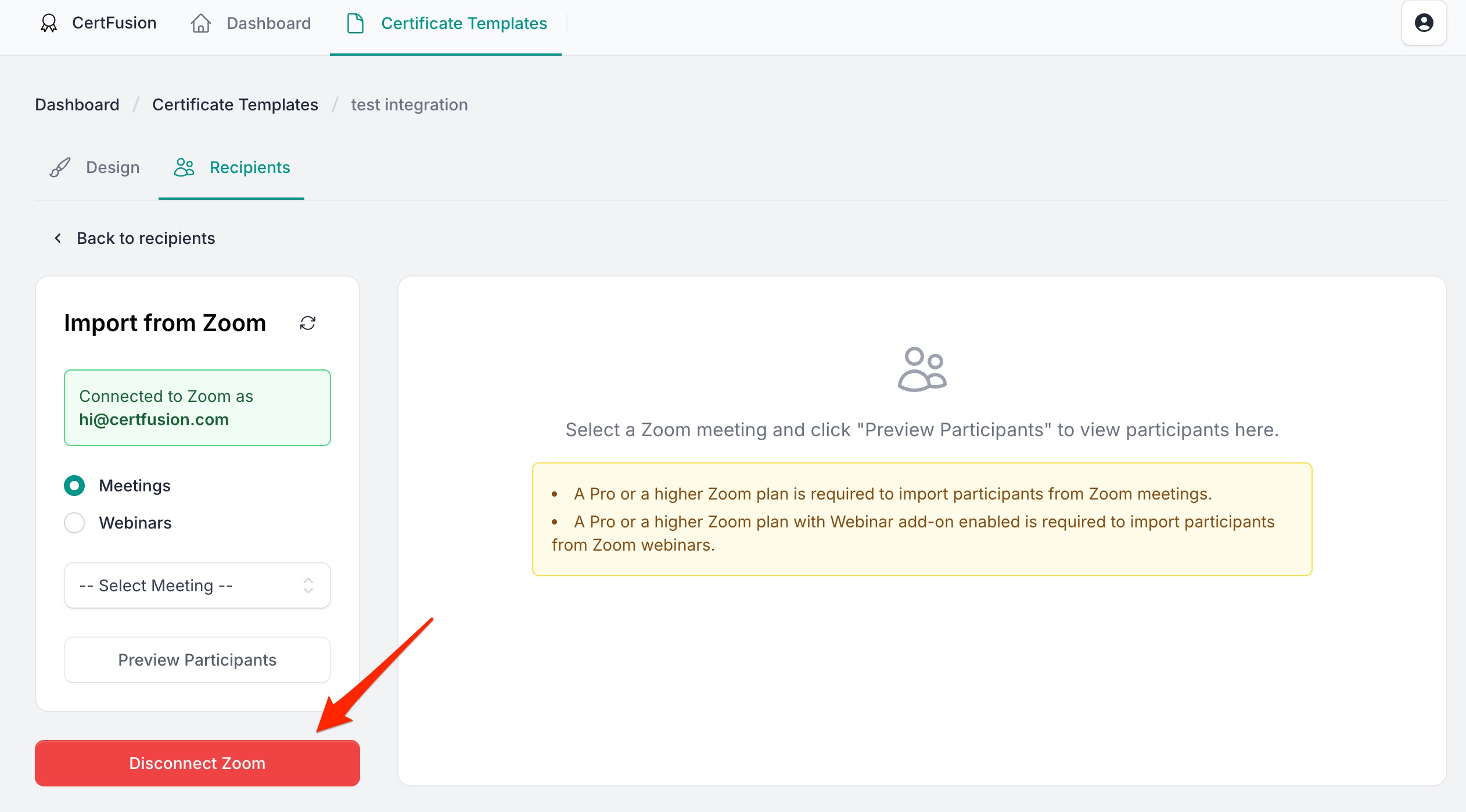
- Option 1: In CertFusion, go to Integration page and click the Disconnect
button. This will immediately unlink your Zoom account.
- Option 2: Go to the Zoom Installed Apps page.
- Find CertFusion in the list and click Remove.
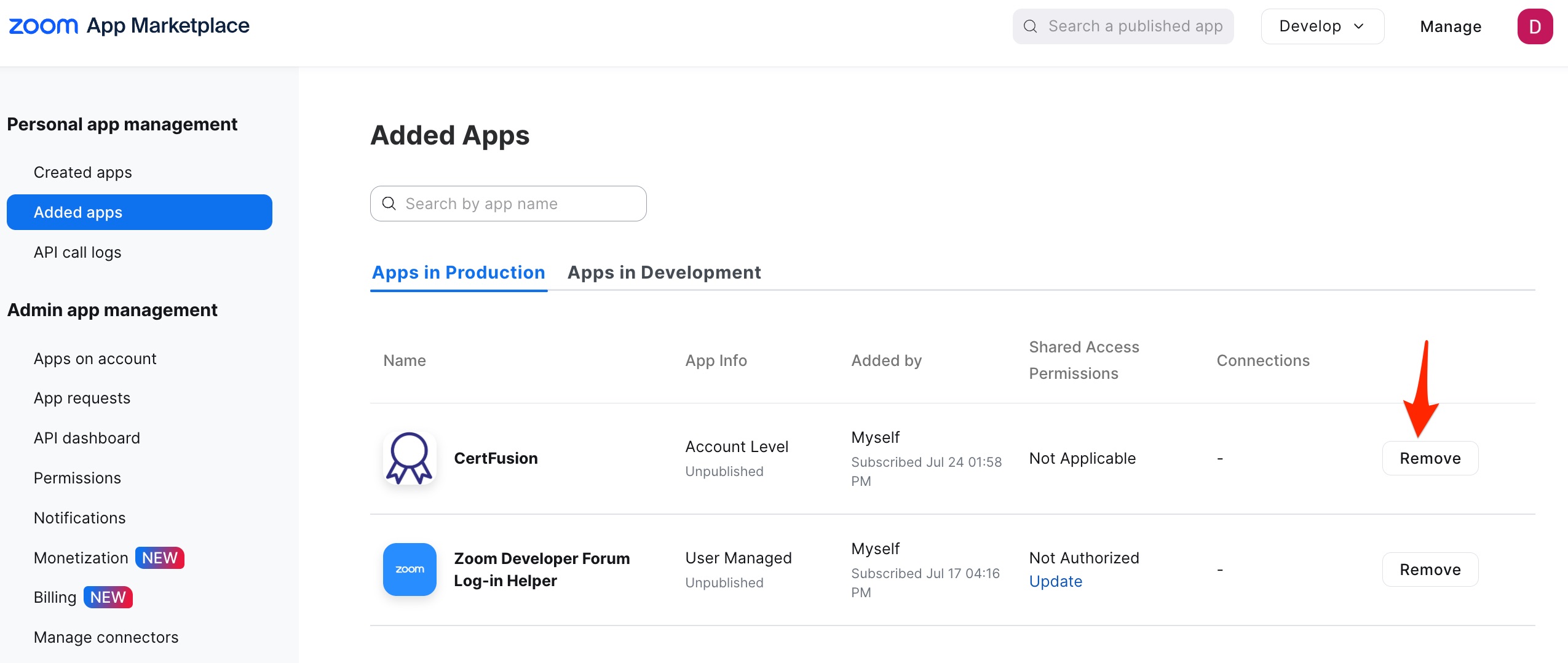
- Zoom will revoke permissions and remove the integration.
You can reconnect your Zoom account at any time by following the install steps above.
Need help? Reach us from our support page.